Game Controllers
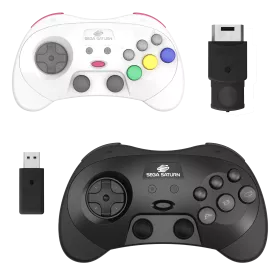
For Sega Saturn, this section contains Saturn pads, wireless 2.4 GHz controllers, Retro Receivers and compatible Sega controllers.
Saturn controllers require the correct Saturn connector or receiver. Similar-looking Mega Drive pads and multi-system controllers may use different plugs or modes, so the exact compatibility is listed with each model.
There are 10 products.
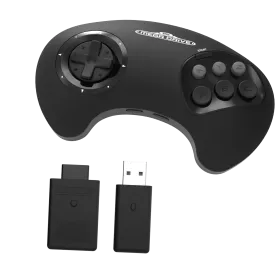
Retro-Bit SEGA MegaDrive BIG6 2.4GHz Wireless controller (Black)
Officially SEGA-licensed BIG6 controller in iconic large Mega Drive style
2.4 GHz wireless technology for lag-free gaming on Mega Drive/Genesis and PC
6 action buttons plus shoulder button in the beloved original controller size
Improved D-pad and repositioned START button for enhanced comfort
Includes both Mega Drive/Genesis receiver and USB dongle for versatile use
Additional Home and Select buttons perfect for modern PC gaming
Retro Receiver MegaDrive / Genesis
Plugs directly into the original 9-pin controller port – no external power needed
Compatible with 8BitDo, PS3, PS4, Wii Remote and Wii U Pro controllers
Supports multiplayer gaming when using two receivers simultaneously
Doubles as a USB Bluetooth adapter for your PC
Simple setup with stable wireless connection for lag-free retro gaming
8BitDo M30 Bluetooth Gamepad (Switch, PC)
Authentic 6-button layout inspired by the iconic Sega Genesis controller
Wireless Bluetooth connectivity for PC, Mac, Android, Nintendo Switch and more
Works with original consoles via 8BitDo Retro Receiver (sold separately)
Rechargeable battery for extended wireless gaming sessions
X-input and D-input support plus wired USB mode included
Regular firmware updates add new system compatibility
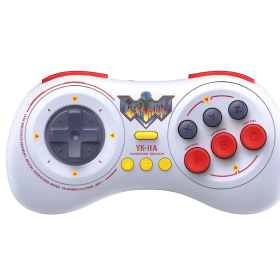
8BitDo M30 Earthion Edition (Switch, PC, Android)
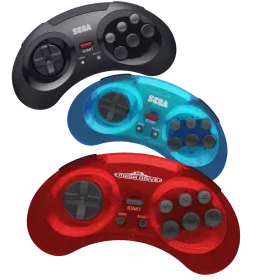
Retro-Bit SEGA Mega Drive 6-button Pad (2.4GHz)
Retro-Bit SEGA Saturn Controller (Saturn-Connector)
Official SEGA® licensed controller by Retro-Bit®
Compatible with all original SEGA® Saturn console models
Classic 8-button layout for authentic gameplay
Extra-long 3-meter (10-foot) cable for comfortable play
Improved shoulder buttons for perfect performance
Original grade quality and durability
Wingman SD Converter (XBox*, PS3/4, Switch Pro to Saturn, DC, PC)
Compatible with Xbox 360, Xbox One, Xbox Elite, PS3, PS4, and Switch Pro controllers
Works seamlessly with Sega Saturn, Dreamcast, and Windows PC
Simple wireless pairing - plug in and play within seconds
Perfect for retro gaming with modern comfort and precision
No drivers or complicated setup required
Enjoy your classic games with the controllers you love
Retro-Bit SEGA MegaDrive BIG6 Arcade Pad (Black, 9-Pin)
Classic MegaDrive design with full 6-button layout
Repositioned START button prevents accidental presses
Improved rounded D-Pad for comfortable gameplay
Extra-long 3m cable for flexible positioning
9-pin connector for original MegaDrive/Genesis consoles
Officially licensed by SEGA
Retro-Bit SEGA Mega Drive 6-button Arcade Pad (Crimson Red, 9-Pin)
Official SEGA licensed arcade pad with classic 6-button layout
Compatible with all original Mega Drive and Genesis console models
Extended 3-meter cable for comfortable couch gaming
Original 9-pin connector for authentic retro experience
Premium build quality matching original controller standards
Perfect for classic fighting games and 16-bit titles
Frequently asked questions
Practical answers about compatibility, features and how things work.
What input modes are available: XInput, DInput, Switch and PlayStation?
XInput is the best choice for most PC gamers. This widely supported input mode follows the Xbox controller layout and is recognized directly by many modern Windows games. For most users, that is all they need. However, XInput support does not automatically mean a controller works on a real Xbox console.
DInput (DirectInput) is the older Windows standard. Some older PC games, such as Crimson Skies or Need for Speed: Underground 2, support DirectInput but not native XInput.
An additional DInput or generic USB HID mode can also be useful for retro gaming systems, FPGA devices, emulators and other specialized setups. Some devices support Xbox-compatible controllers, while others expect a standard USB HID gamepad. Which input modes work depends on the specific device and its software.
For example, MiSTer FPGA supports many USB controllers as well as Xbox-compatible input devices. Depending on the core, different button mappings or special input features may be required. DInput itself is therefore not a general requirement on MiSTer.
If you plan to use your controller with retro or FPGA systems, check which input modes are supported beforehand. A controller with several selectable modes offers more flexibility.
Switch mode makes the controller appear to compatible devices as a Nintendo Switch Pro Controller. It can be useful beyond the Switch: Steam Input, Linux and various applications can also support these controllers. However, not every PC game will recognize this mode automatically.
PlayStation mode can refer to different compatibility modes depending on the controller, such as PS4 controller or PlayStation Classic modes. There is no single universal PlayStation mode. Compatibility with a particular PlayStation console must be explicitly confirmed for the product.
Connection type matters: Not every input mode is available over every connection. Some controllers support DInput only via a USB cable, while others also offer it through a 2.4 GHz receiver or Bluetooth.
That is why our technical specifications list confirmed input modes separately for USB, 2.4 GHz and Bluetooth.
What is the difference between 2.4 GHz wireless and Bluetooth controllers?
Both types of connection are wireless and use the 2.4 GHz frequency band. The difference is the transmission technology: Bluetooth is a widely used standard, whereas “2.4 GHz wireless” usually refers to a manufacturer's own radio link with a matching receiver.
Bluetooth: flexible and widely compatible
Many PCs, gaming handhelds, smartphones, tablets and consoles support Bluetooth controllers. If the controller is compatible with the device, you usually pair it once through the Bluetooth settings. After that, it will normally reconnect automatically.
No additional receiver is needed, leaving a USB port free.
However, not every Bluetooth-enabled device supports every Bluetooth controller. Game consoles in particular may require certain controller models or input modes.
2.4 GHz wireless: plug in and play
Controllers using 2.4 GHz wireless usually come with a matching USB receiver (dongle). Plug it in and switch the controller on. The two are often paired already.
This offers several advantages:
- No Bluetooth menu or Bluetooth manager setup is needed.
- It also works with compatible devices that have no built-in Bluetooth.
- Many systems recognize the receiver as a regular USB controller.
- That can be particularly useful for PCs, retro systems and other devices with USB ports.
The device must still support the particular receiver and its input mode. Not every dongle automatically works with every system. Some retro controllers also use dedicated receivers for particular consoles.
What about speed?
Many 2.4 GHz controllers offer high polling rates and low, consistent latency. Modern Bluetooth controllers can also be very fast, however. Actual performance depends on the specific controller and connection.
Which connection should I choose?
Bluetooth is especially useful if you want to use a controller with different compatible devices without carrying an extra receiver.
2.4 GHz wireless is often a good choice if you want a straightforward setup, prefer a responsive connection, or use a device without Bluetooth.
Check the product's technical specifications to see which connections and systems it supports.
What do polling rate and latency mean for a controller?
Polling rate and latency both affect how quickly a controller responds to your inputs, but they describe two different things.
What is polling rate?
Polling rate describes how often the controller or its connection reports or requests new input data from the system.
It is measured in hertz (Hz).
| Polling rate | Reporting interval |
|---|---|
| 125 Hz | 8 milliseconds |
| 250 Hz | 4 milliseconds |
| 500 Hz | 2 milliseconds |
| 1,000 Hz | 1 millisecond |
The higher the polling rate, the shorter the interval between input reports can be.
A high polling rate can therefore be useful in fast-paced games. The connected system must also support the relevant reporting rate.
What is latency?
Latency is the delay between an action on the controller and the moment the system registers that input.
Several factors contribute to this delay:
- How quickly the controller detects and processes the button press.
- How long transmission via cable, Bluetooth or 2.4 GHz wireless takes.
- How quickly the connected system processes the input.
Before the action becomes visible on the screen, the game and display introduce additional processing delays.
Does a 1,000 Hz polling rate automatically mean 1 ms of latency?
No. At 1,000 Hz, only the reporting interval is one millisecond. The total input delay can be considerably higher.
In practice, a well-optimized controller running at 500 Hz can therefore respond faster than a poorly optimized controller running at 1,000 Hz.
Which values matter?
For most games, consistently low latency matters more than the highest possible polling rate.
Low delays can be especially beneficial for fast action games, shooters and competitive games. In retro games, processing by emulators, consoles or FPGA systems and the display also matter.
Our tip: A high polling rate is an interesting technical specification, but does not by itself prove that a controller is fast. Measurements of real-world latency under comparable conditions are more meaningful.
Can I remap controller buttons or use macros and turbo functions?
That depends on the controller. Remapping, macros and turbo are different features. Not every controller supports all of them, and some settings are available only through specific software, connection types or input modes.
- Remapping: One button takes over the function of another, such as swapping A and B. Depending on the model, button mappings can be changed on the controller or in an app, sometimes with saved profiles.
- Macros: A single press triggers several inputs at once or in a sequence. Support for button sequences, timing and custom combinations varies by controller. Remappable buttons do not automatically mean macro support.
- Turbo: A button sends repeated presses without the player having to press it over and over. Some controllers repeat only while the button is held; others also offer continuous automatic repetition.
- Keyboard input: Some controllers or configuration apps can map controller buttons to keyboard commands. This is useful for PC games with functions that are accessible only through keyboard keys. Keyboard mapping is not an inherent feature of macros.
Important: Extra buttons do not necessarily support programmable macros. Some can only duplicate existing controller buttons. Software availability, profiles and stored settings also vary by model and platform.
Check the technical specifications and, where available, the FAQs on the individual product page for functions confirmed for that particular controller. Online games may also have their own rules regarding macros or turbo functions.
Why does my controller work on a PC but not necessarily on Xbox or PlayStation?
A controller that works on Windows is not automatically compatible with an Xbox or PlayStation console. PC input modes and compatibility with a real console are two different things.
XInput is a widely supported Windows game input standard based on Xbox-style controllers. A gamepad may operate as an XInput device on a PC without being recognized as an authorized controller by a physical Xbox console. DInput or generic USB gamepad support does not guarantee console compatibility either.
Xbox and PlayStation: Supported controllers depend on the console generation, the connection protocol and the devices accepted or authorized by the system. Compatibility with an older console does not automatically extend to the next generation or to every game.
Adapters and receivers: Some controllers require a receiver or adapter specifically intended for the target console. An ordinary Bluetooth or 2.4 GHz USB receiver designed for PCs will not necessarily work on consoles. The available input modes may also differ between USB, Bluetooth and 2.4 GHz connections.
Nintendo Switch and Steam: A Switch- or Steam-compatible input mode does not itself establish Xbox or PlayStation support. Likewise, PC software may recognize controllers that a particular console game cannot use directly.
What matters is the explicitly confirmed platform support of the specific controller. Check the compatibility list and technical specifications on its product page rather than relying on labels such as “XInput”, “Bluetooth” or “for PC”. If a console is not listed, do not assume that it is supported.